Windows download and SmartScreen
Windows or your browser often asks the first time whether you really want to open fluesta. That is normal. Here is exactly where to click.
Download the app
Section titled “Download the app”Save the file, then open it with a double-click.
If the browser blocks the file
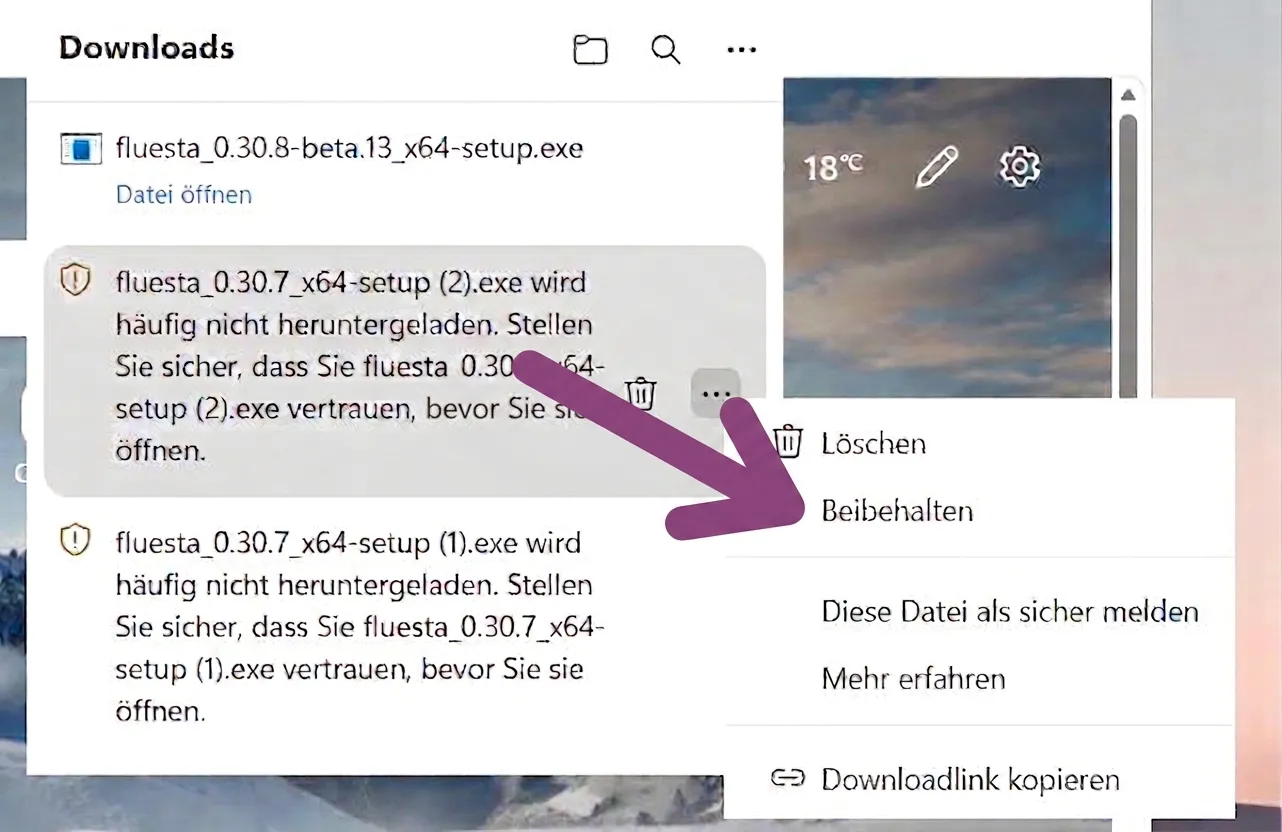
Section titled “If the browser blocks the file”Microsoft Edge sometimes says the file is not downloaded often. You can keep it anyway:
- Open Downloads at the bottom right of the browser.
- Click the three dots next to the file.
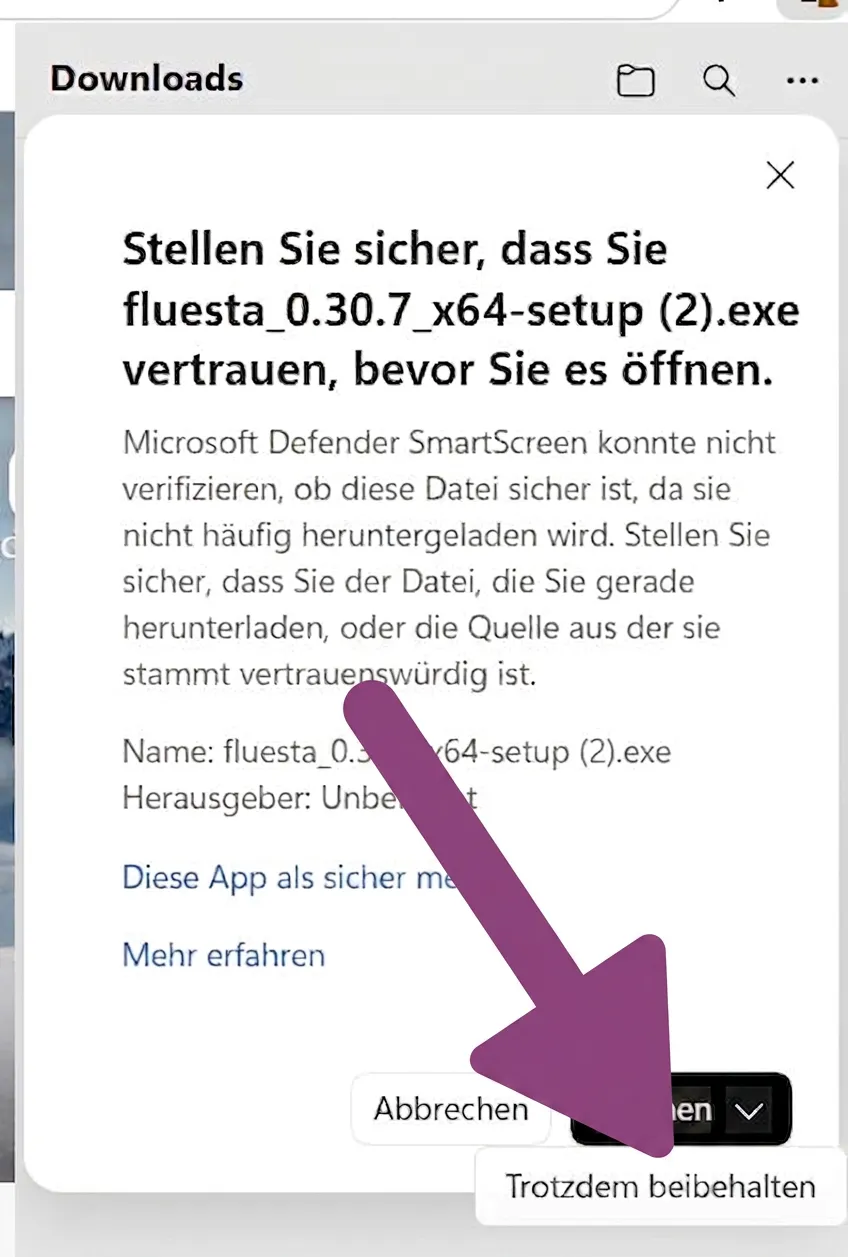
- Click Keep.
- Confirm with Keep anyway.
If Windows asks
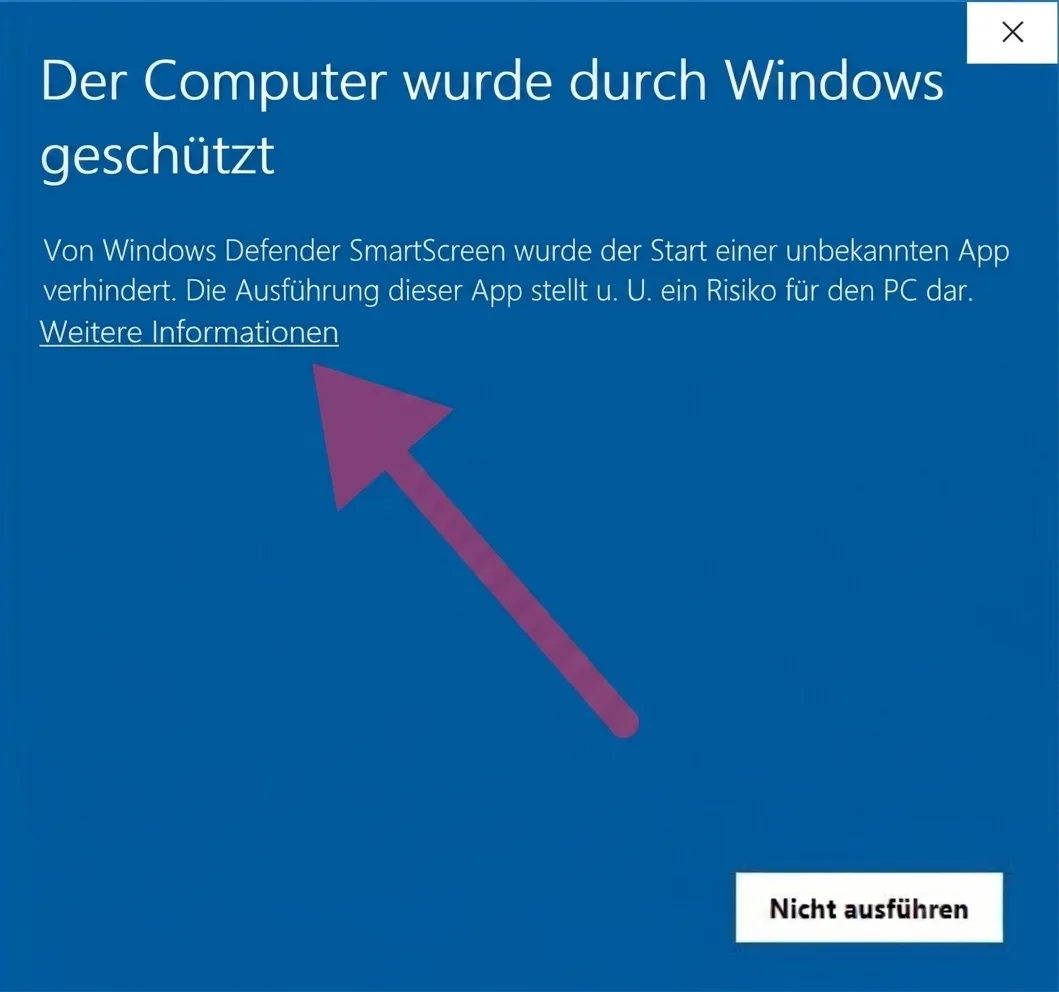
Section titled “If Windows asks”Opening the file can show a blue window: “Windows protected your PC.”
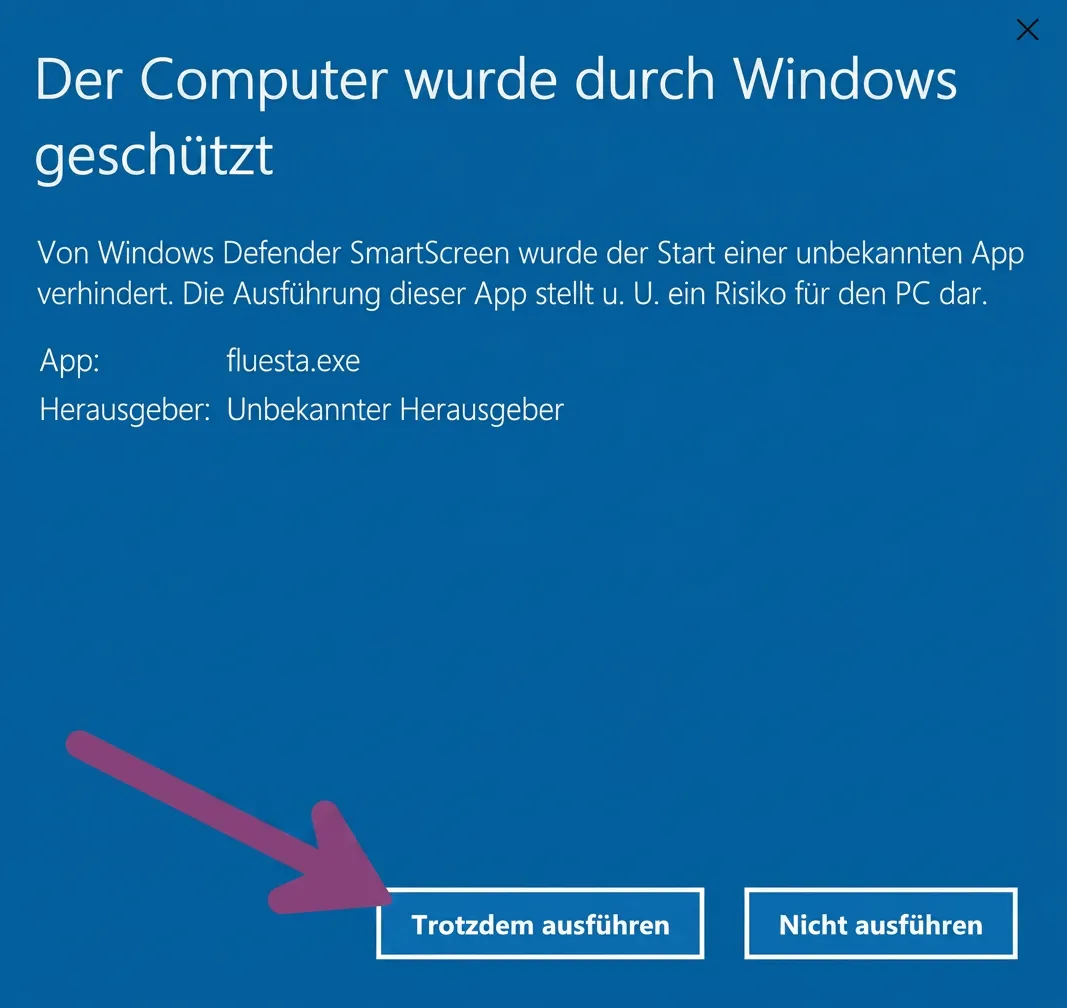
- Click More info — not Don’t run.
- Click Run anyway. fluesta then starts normally.
Why does Windows ask?
Section titled “Why does Windows ask?”Windows uses a protection feature called SmartScreen. New apps are still unknown there, so Windows asks first — even when fluesta is safely downloaded and signed. The prompt fades on its own as Windows learns to recognize fluesta.